Selasa, 18 Oktober 2011

How to Jailbreak Your iPod Touch 4G Using RedSn0w (Windows) [5.0]


These are instructions on how to jailbreak your iPod Touch 4G on the iOS 5.0 firmware using RedSn0w for Windows. The Mac version of this tutorial is here.

This jailbreak is tethered which means you will need to connect your device to the computer each time you reboot. Finally, it may be prudent to save your SHSH Blobs by following this tutorial before continuing.

Step One
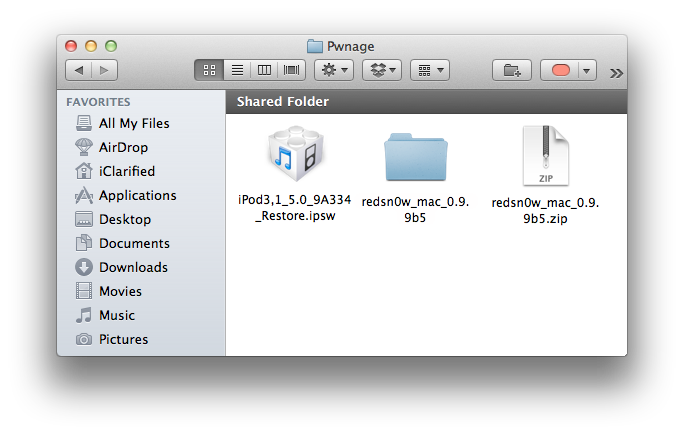
Create a folder on your desktop called Pwnage

Download RedSn0w 0.9.9b6 from here and place it in the Pwnage folder. Likewise, download the 5.0 firmware from here and place it in the Pwnage folder. (Note: you do not need to download the 5.0 firmware if you are already on iOS 5.0)

Extract the RedSn0w zip file by double clicking it.


Step Two: (Skip this step if you're on iOS 5 already)
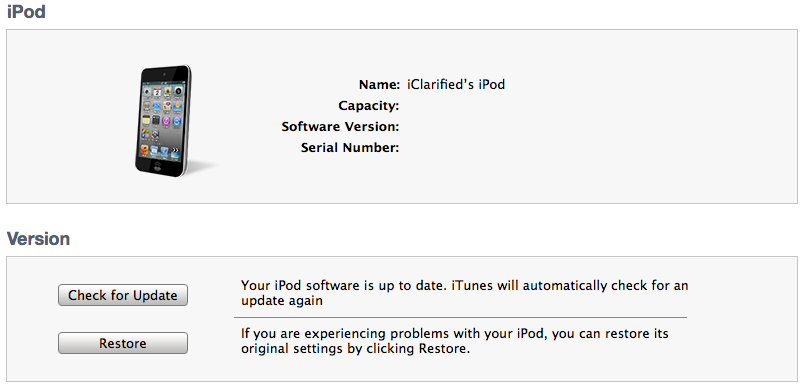
Connect your iPod to the computer and launch iTunes.


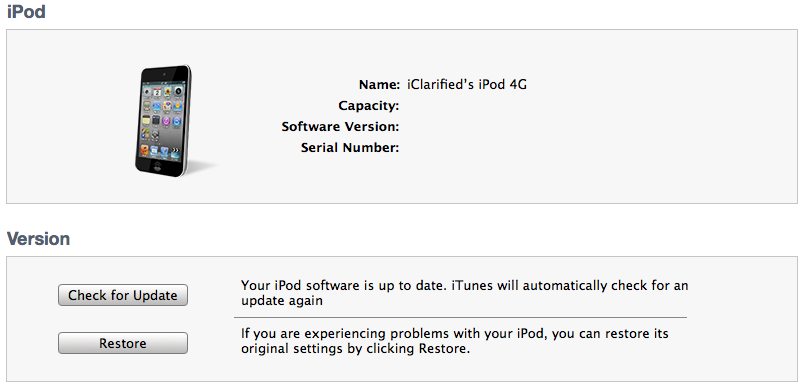
Select your iPod from the list of devices on the left. Now hold down Shift and click the Restore button. Restore is preferred as it won't create any wasted space on your iPod.


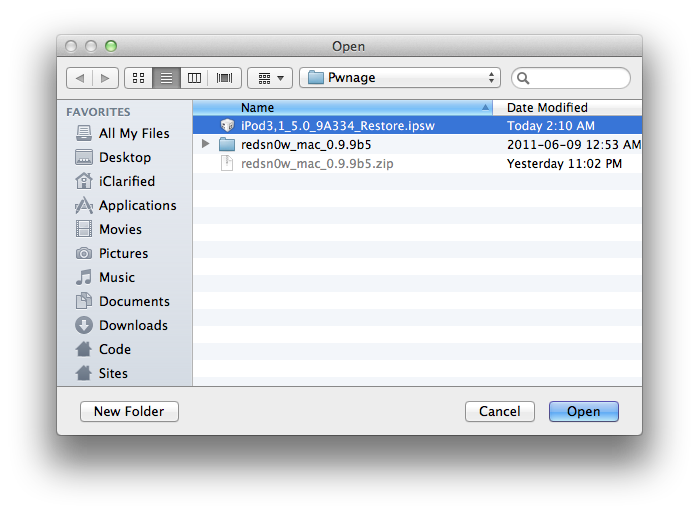
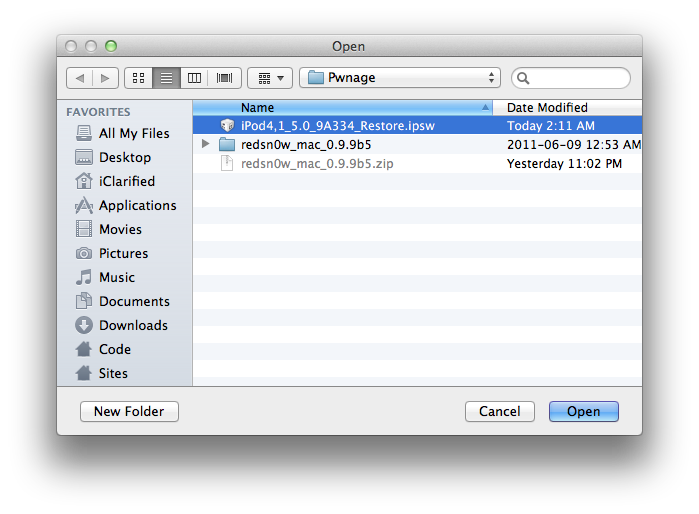
Navigate to the Pwnage folder on your desktop and select the 5.0 firmware ipsw. Click the Choose button to continue.


iTunes will now update your iPod to the new firmware.

Step Three
Launch the redsn0w application from the redsn0w folder we extracted earlier.


**Windows 7 users may want to try running the redsn0w executable mode as an administrator in Windows Vista compatibility. You can do this by right clicking the executable and selecting Properties from the contextual menu.

Step Four
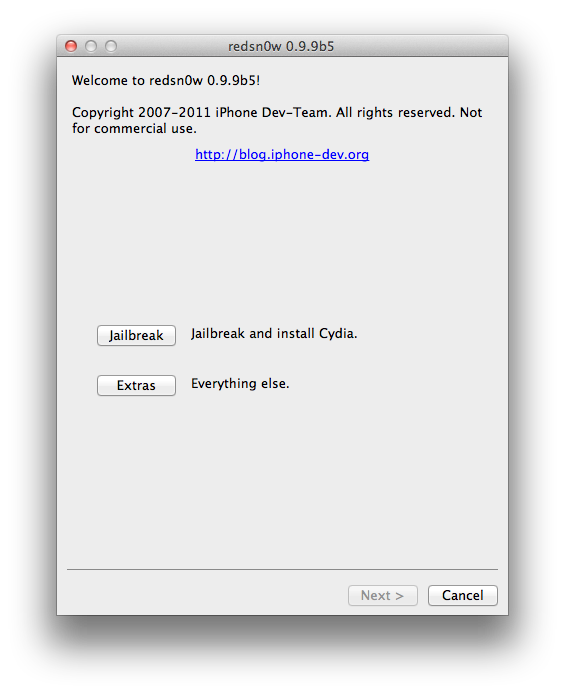
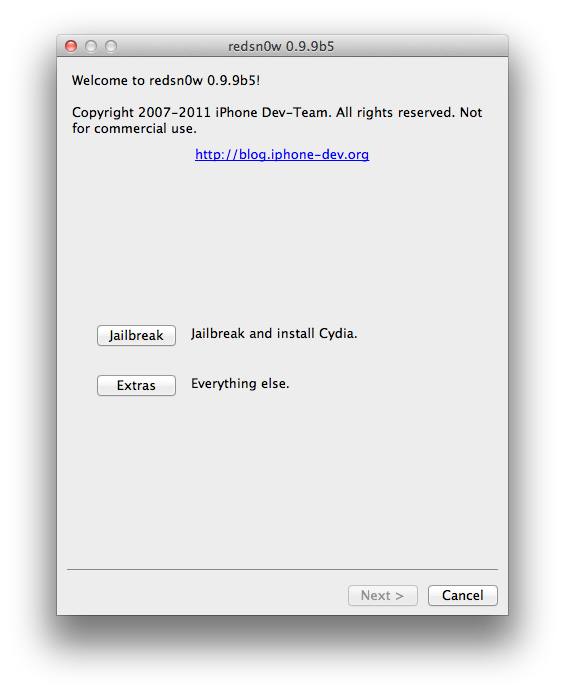
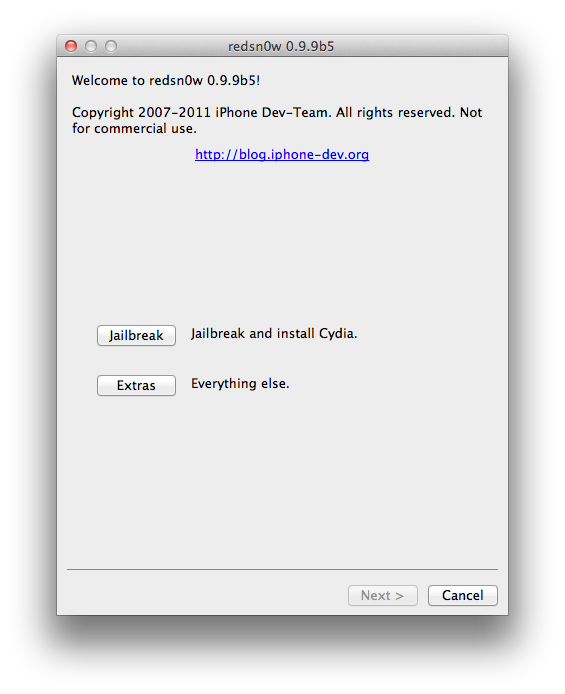
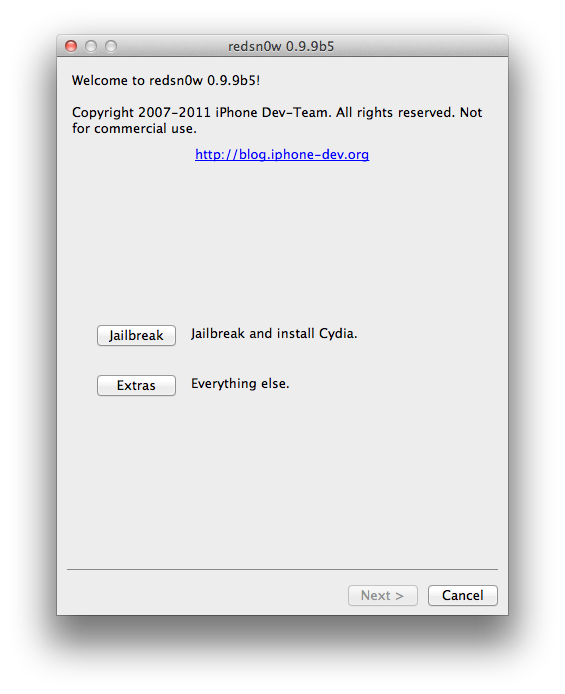
Once RedSn0w opens click the Jailbreak button


Step Five
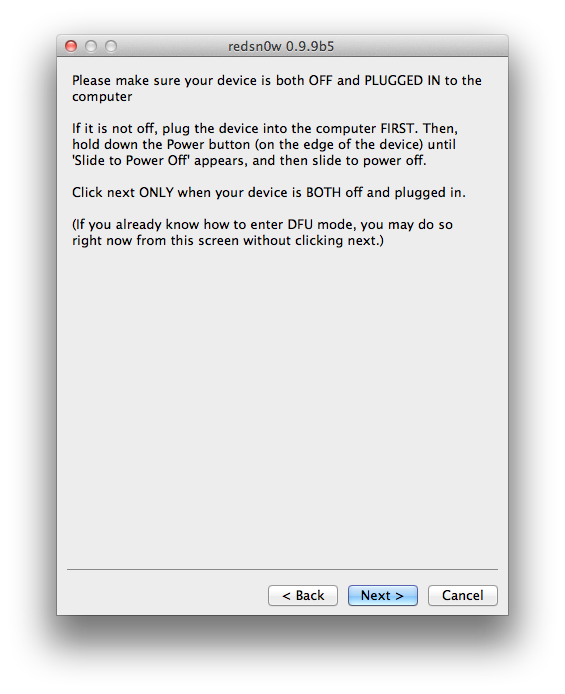
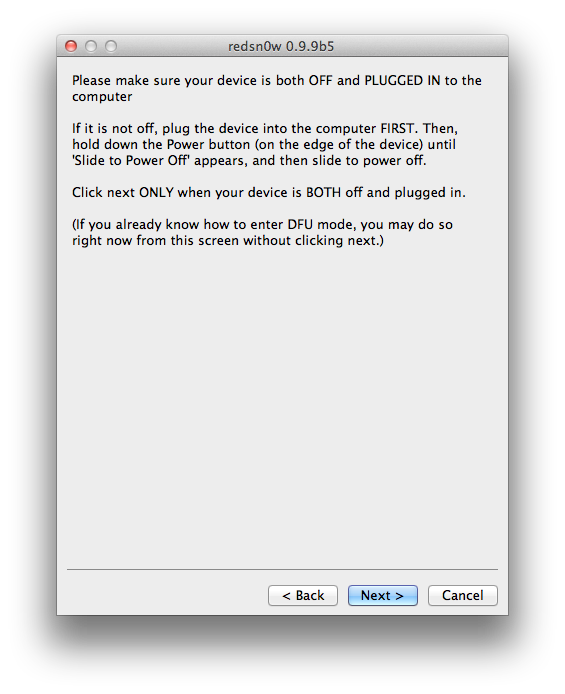
Plug your iPod into the computer and make sure its OFF then click the Next button


Step Six
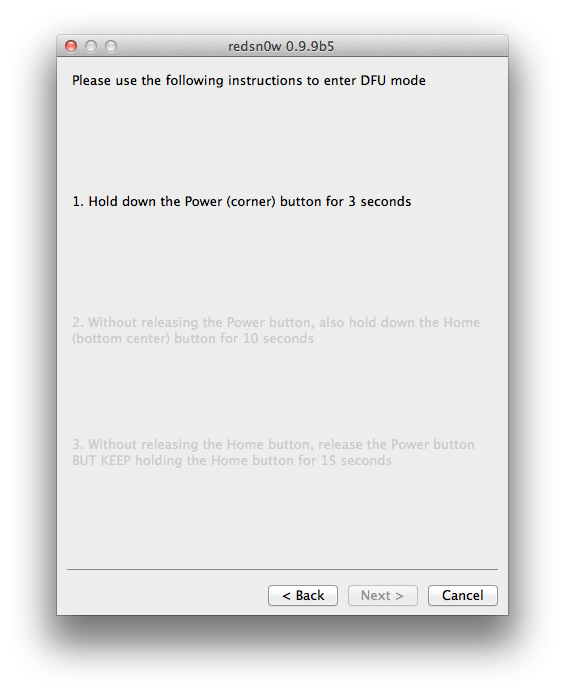
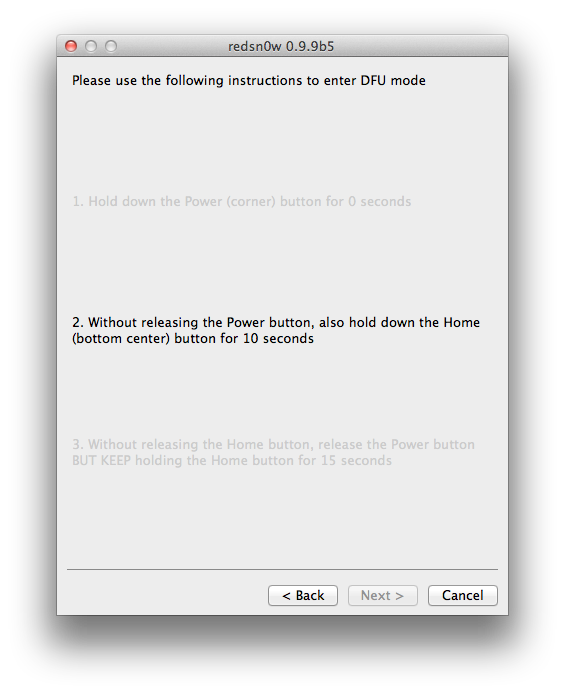
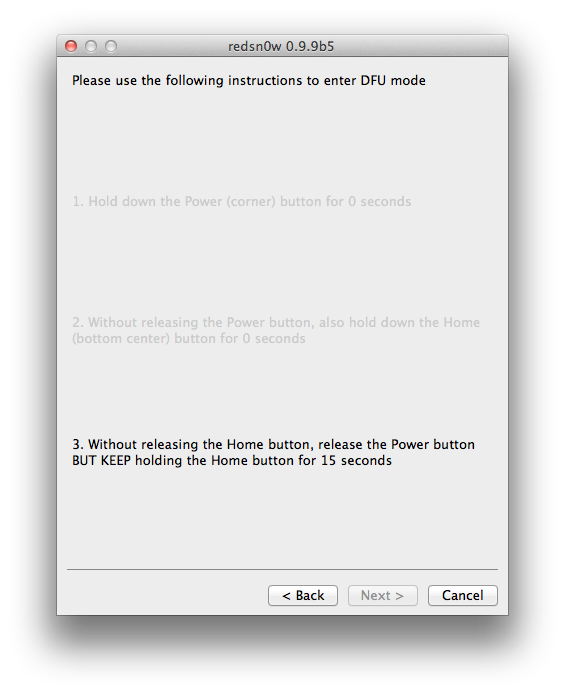
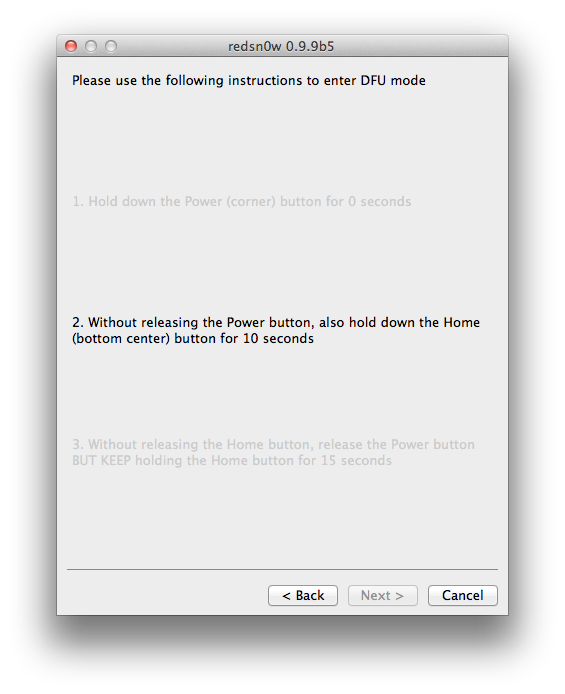
RedSn0w will now guide you through the steps to get into DFU mode.


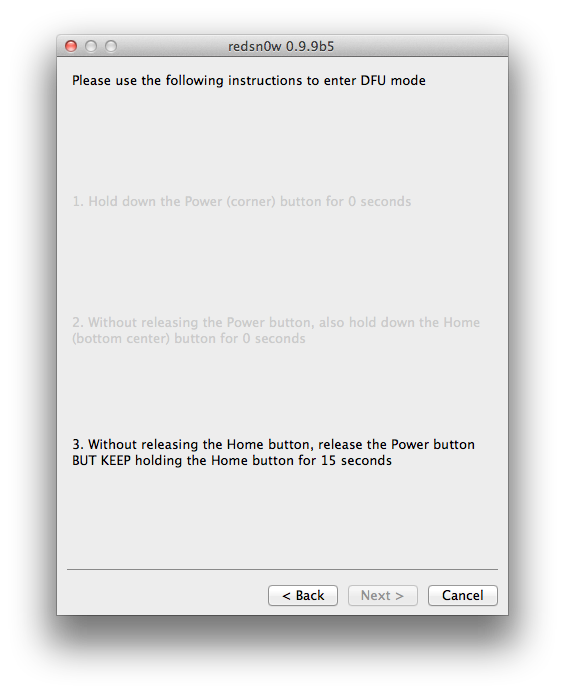
Hold down both the Home button and the Power button for 10 seconds.


Release the Power button and continue holding the Home button until RedSn0w detects the device.


Step Seven
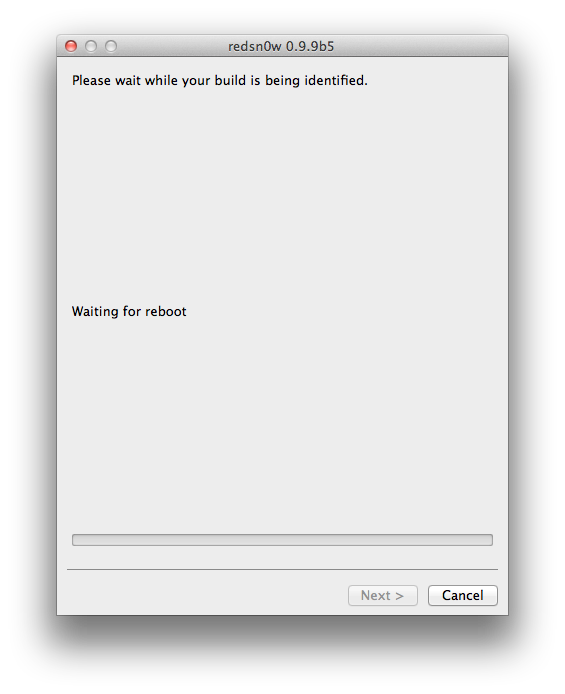
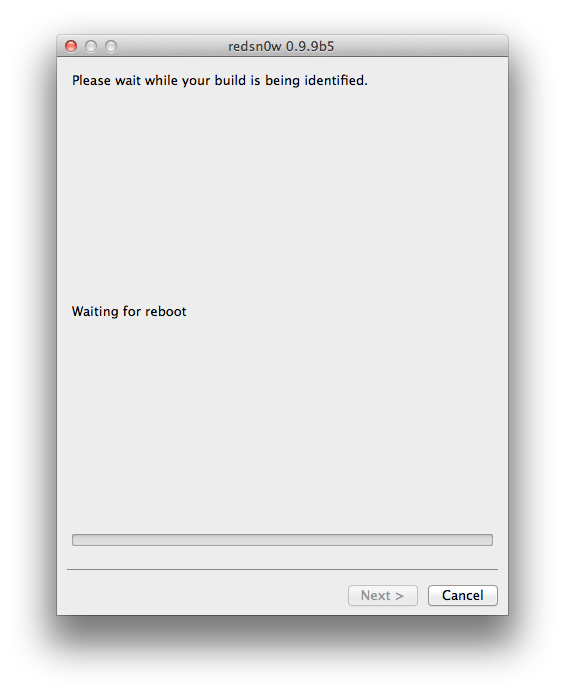
Your iPod will now reboot


Step Eight
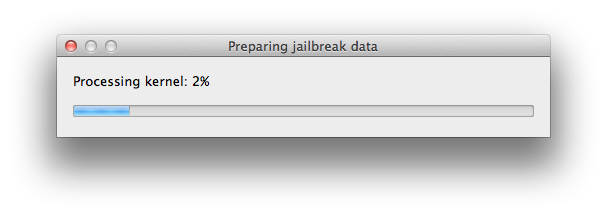
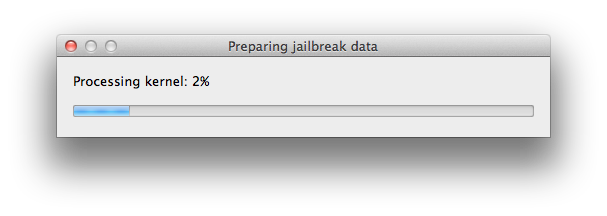
RedSn0w will prepare the jailbreak data.


Step Nine
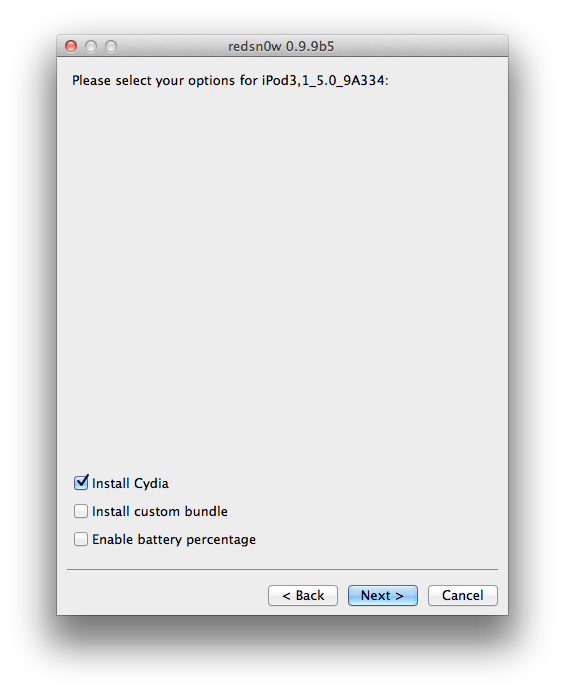
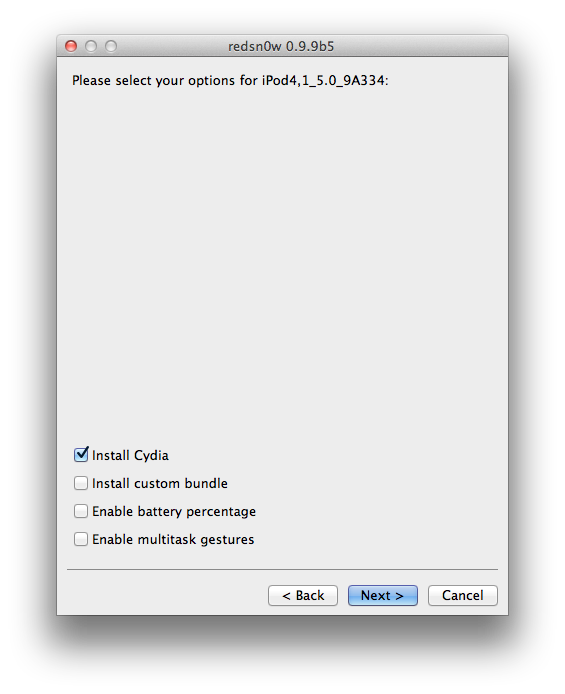
Select Cydia from the list of options and click Next.


Step Ten
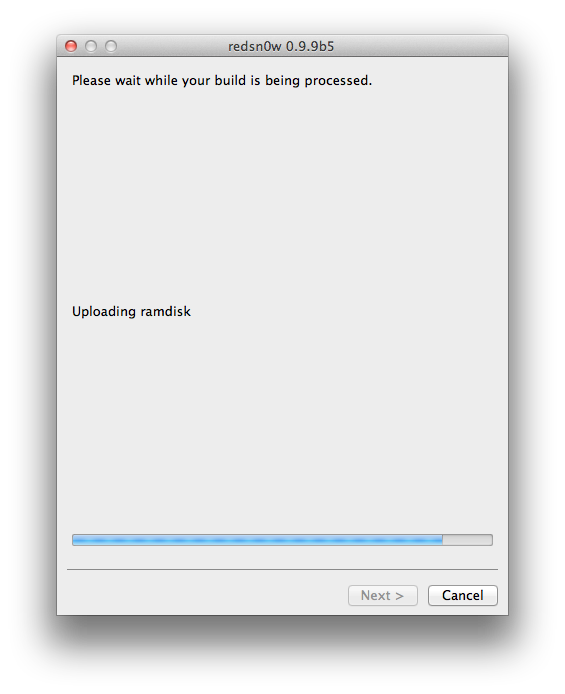
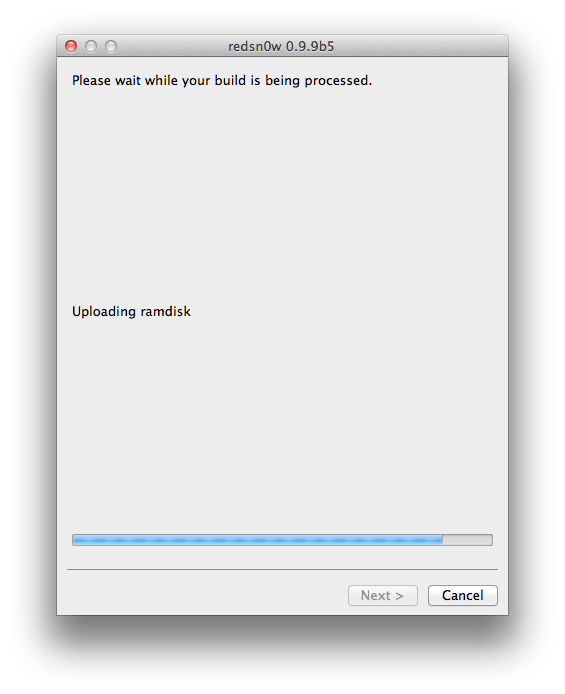
Your iPod will now be rebooted again and RedSn0w will begin uploading the new RAM Disk and Kernel.


Step Eleven
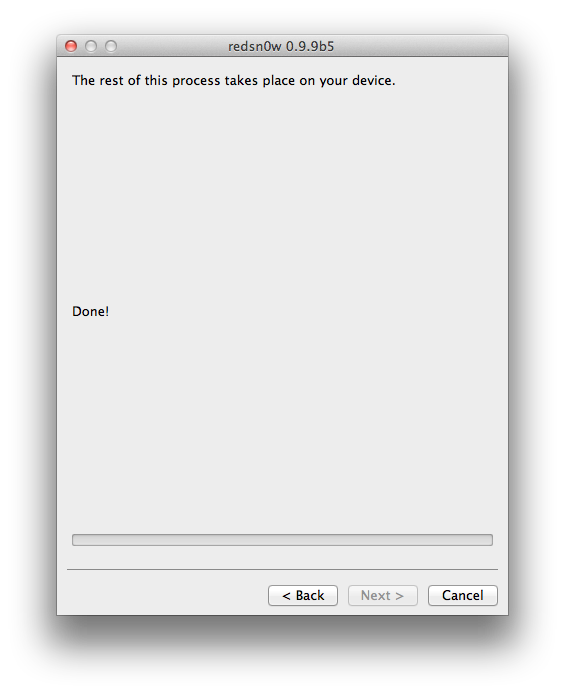
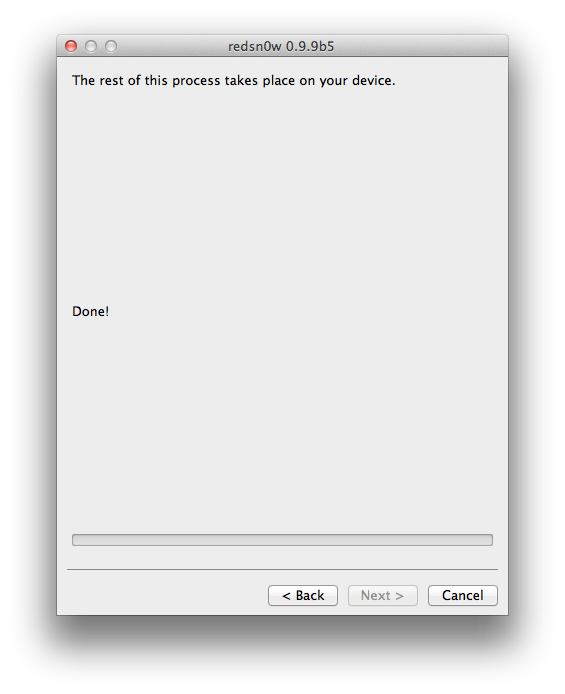
Once this is complete you will be notified that RedSn0w is done. When your iPod finishes rebooting (5 minutes or so) it will be jailbroken with Cydia on the SpringBoard.


BOOT TETHERED
Once you have jailbroken you will need to rerun redsn0w to boot tethered.

Step One
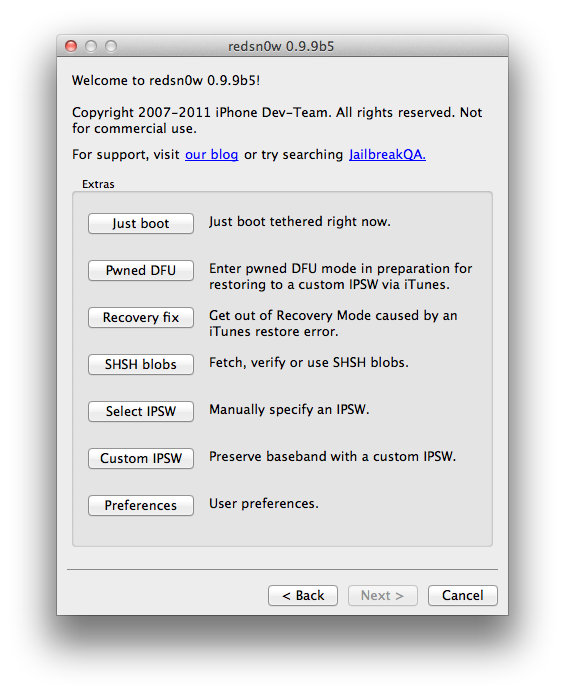
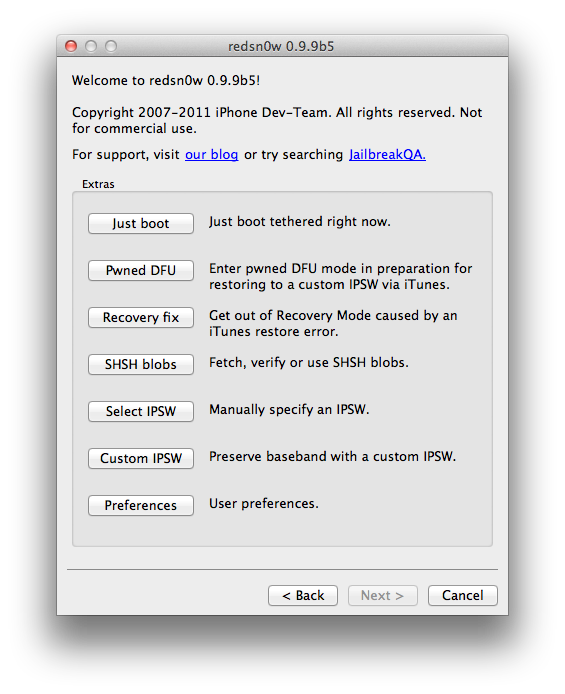
From the main RedSn0w menu click the Extras button.


Step Two
Select Just boot from the Extras menu to just boot tethered.


*As usual a big thanks to the iPhone Dev-Team and Geohot for their hard work and contribution to the iPhone community.

3G for iPod Touch Review

Technology moved on and time came when iPod Touch can not only be music listening device and connect to “Wifi” but also have 3G! Introducing to you 3G for iPod Touch by Virgin Mobile!


At fist I was bit skeptical about whole 3G for iPod Touch and on top of that, why would I need 3G for iPod Touch when I have smartphone or iPad for that?

Nice thing about the 3G for iPod Touch is not only connection but also something you can take on the road and have wifi turned on all the time. While many carriers charge $30+ for data plan with Virgin Mobile I got it for $20 and what I like most about it? NO FREAKING CONTRACT! :)

Anyway, if you are in USA and want 3G for your iPod Touch you can either go to Virgin Mobile

ipodtouchtricks


What do you think about the 3G for iPod Touch? Do you see your self using it?

Jumat, 14 Oktober 2011

The Best iPhone 4S Cases, Skins, Covers and Screen Protectors Reviewed

Purchased a new iPhone 4S and are now looking for the best iPhone 4S cases, skins, screen protectors and covers to protect your brand new smartphone? here are the very best iPhone 4S cases you won't want to leave home without:


CaseCrown iPhone 4 and 4S Glider Slim Fit Case

The CaseCrown Glider Slim Fit case Has a two-piece system that fits your iPhone 4S like a glove.  The Slim Fit case allows total access to all of the iPhone 4S's features while providing full protection.  The soft felt inner lining prevents the back from getting scratched, while the case also creates a bumper with the iPhone 4S antenna so that all of your calls get through.  The CaseCrown Glider Slim Fit case, fits like a glove.
CaseCrown iPhone 4 and 4S Glider Slim Fit Case - Black Obsidian (Fits AT&T, Sprint and Verizon iPhone 4 and 4S)


PhoneDevil  Magic Screen Protector Matte Clear Edition

Protect your new iPhone 4S's screen with the PhoneDevil Magic Screen Protector Matte Clear Edition. This will cover the front of your screen, and with its matte finish, can reduce screen glare, and fingerprints. It is  easily applied, and removed - and is also available in a Crystal Clear edition, or a Privacy edition.
PhoneDevil / MediaDevil Magic Screen protector: Matte Clear (Anti-Glare) edition - For Apple iPhone 4 / 4G (AT&T/Verizon/Sprint) and 4S / 4GS (2 x FRONT screen protectors)


Case-Mate Barely There iPhone 4S Case

The impact-resistant Case-Mate Barely There case is a great choice to shield your iPhone 4S from dings, and its slim profile and sleek good looks will allow you to show off your iPhone in style.  The Barely There case covers the back, and sides of your iPhone 4S, and is available in a a variety of stunning colors.
Case-Mate Barely There Slim Case for iPhone 4


Incipio NGP Semi-Rigid Soft Shell Case for iPhone 4S 

If you want a thin, soft, and impact-resistant case, look no further than the Incipio NGP Semi-Rigid Soft Shell case for the iPhone 4s.  This popular case is easy to install and remove, and allows access to the iPhone 4S's controls. The Incipio NGP iPhone 4S case is also tear, and elongation resistant.
Incipio NGP Semi-Rigid Soft Shell Case for iPhone 4/4S - Matte Fuchsia Magenta


QuickFlipCase for iPhone 4S: Premium Leather Apple Bumper Edition


This soft, protective hip case, The QuickFlipCase for iPhone 4S (with an option for an Apple bumper, sold separately) comes in a premium leather cover - with a magnetic enclosure - to securely protect your new iPhone 4S.  Easily remove your iPhone using the center push-up with just one hand.  A sturdy belt clip is secured with rivets, giving you peace of mind that your new iPhone 4S will remain safe, and sound.
NEW!! QuickFlipCase for iPhone 4 and new iPhone 4S, Apple Bumper Edition, Grantwood Technology's Premium Leather Horizontal Flip Case (Black)

Kamis, 13 Oktober 2011

How to Jailbreak Your iPod Touch 3G Using RedSn0w (Mac) [5.0]


These are instructions on how to jailbreak your iPod Touch 3G on the iOS 5.0 firmware using RedSn0w for Mac.

This jailbreak is tethered which means you will need to connect your device to the computer each time you reboot. Finally, it may be prudent to save your SHSH Blobs by following this tutorial before continuing.

Step One
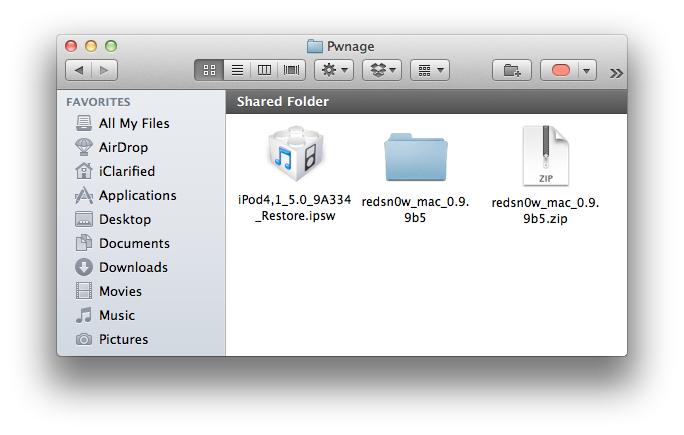
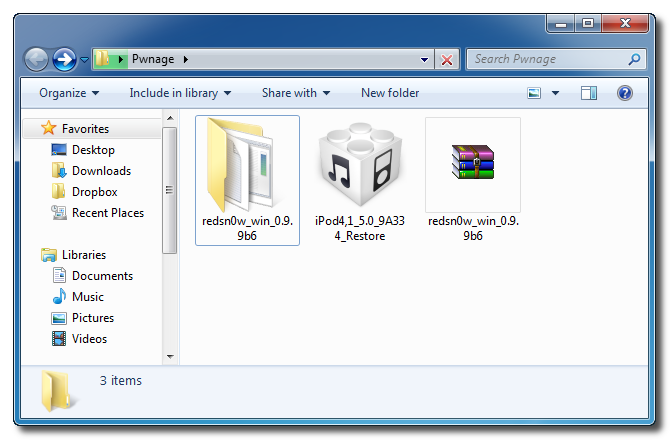
Create a folder on your desktop called Pwnage

Download RedSn0w 0.9.9b5 from here and place it in the Pwnage folder. Likewise, download the 5.0 firmware from here and place it in the Pwnage folder. (Note: you do not need to download the 5.0 firmware if you are already on iOS 5.0)

Extract the RedSn0w zip file by double clicking it.

Step Two: (Skip this step if you're on iOS 5 already)
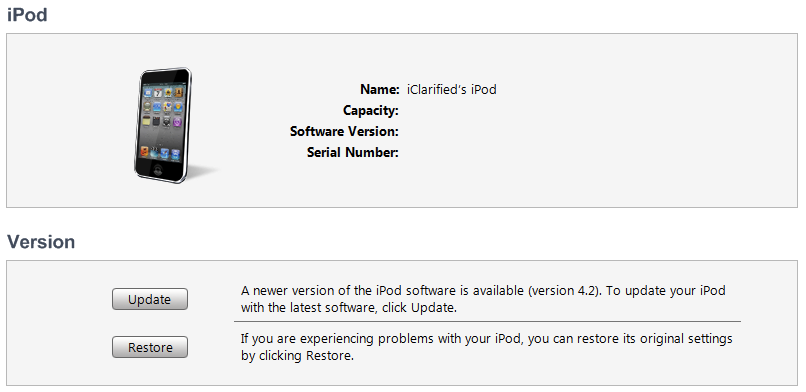
Connect your iPod to the computer and launch iTunes.


Select your iPod from the list of devices on the left. Now hold down Option and click the Restore button. Restore is preferred as it won't create any wasted space on your iPod.

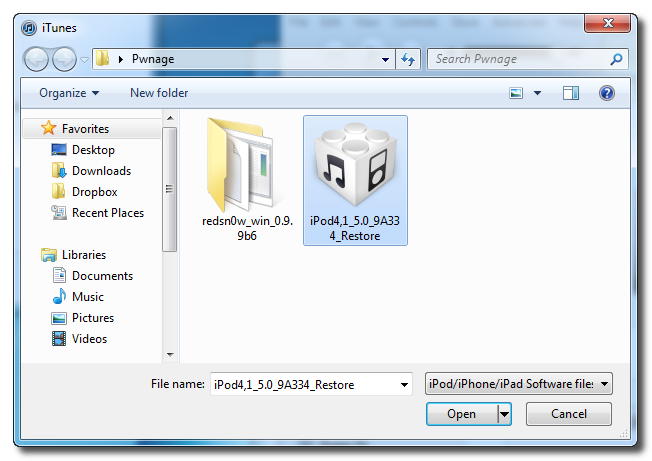
Navigate to the Pwnage folder on your desktop and select the 5.0 firmware ipsw. Click the Choose button to continue.

iTunes will now update your iPod to the new firmware.

Step Three
Launch the redsn0w application from the redsn0w folder we extracted earlier.

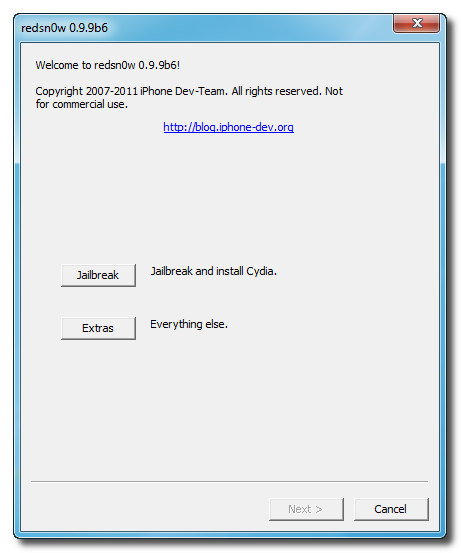
Step Four
Once RedSn0w opens click the Jailbreak button

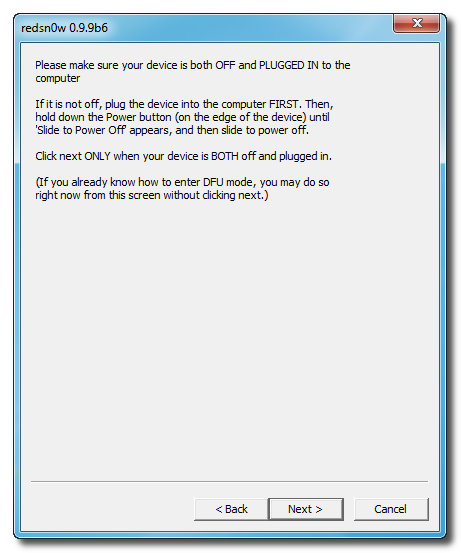
Step Five
Plug your iPod into the computer and make sure its OFF then click the Next button

Step Six
RedSn0w will now guide you through the steps to get into DFU mode.
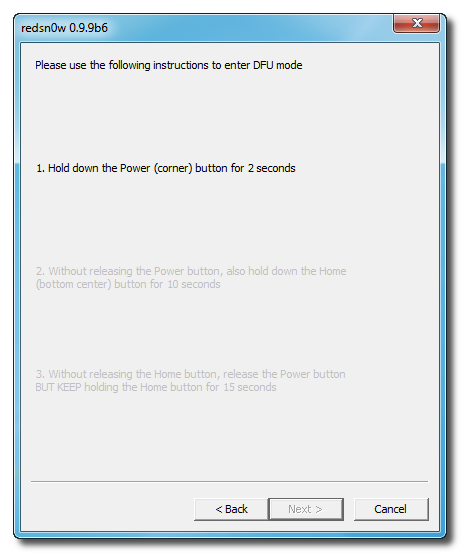

Hold down both the Home button and the Power button for 10 seconds.
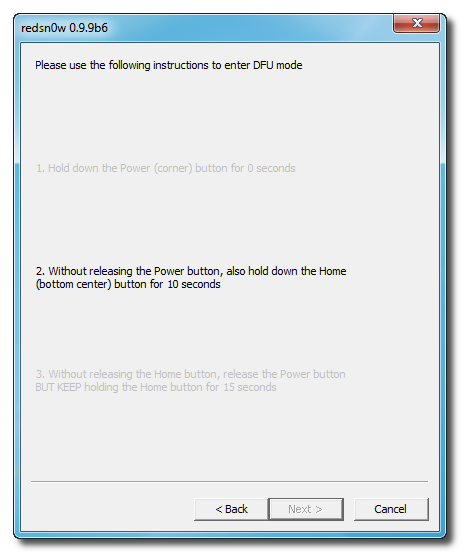

Release the Power button and continue holding the Home button until RedSn0w detects the device.
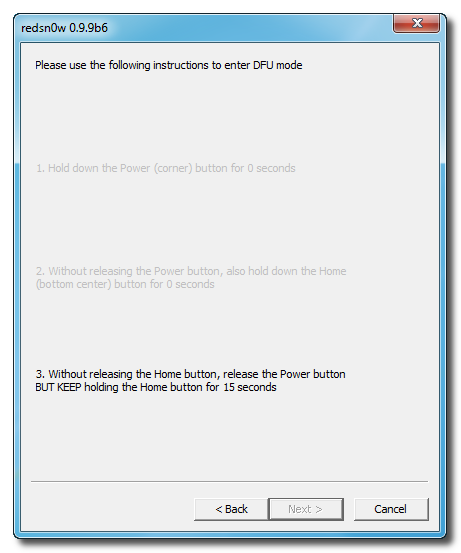

Step Seven
Your iPod will now reboot
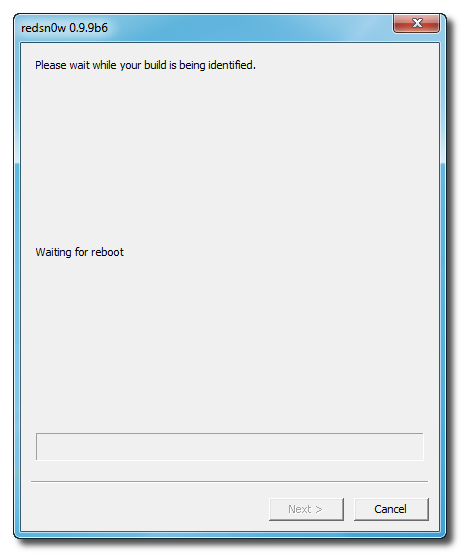

Step Eight
RedSn0w will prepare the jailbreak data.
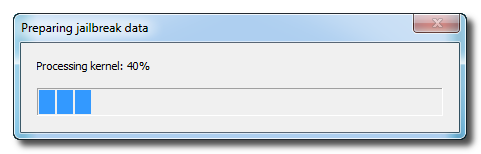

Step Nine
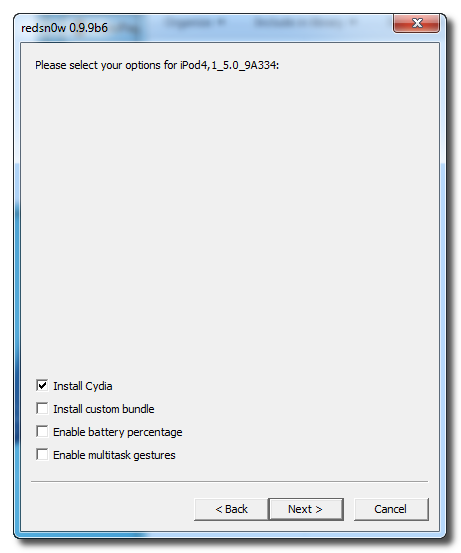
Select Cydia from the list of options and click Next.

Step Ten
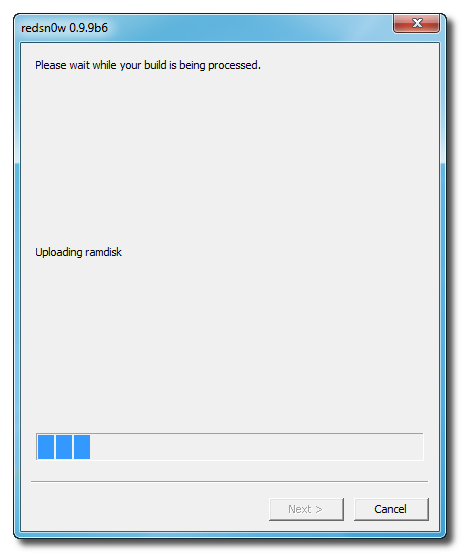
Your iPod will now be rebooted again and RedSn0w will begin uploading the new RAM Disk and Kernel.

Step Eleven
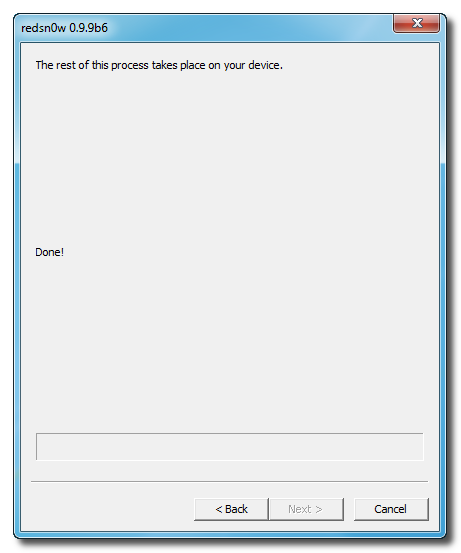
Once this is complete you will be notified that RedSn0w is done. When your iPod finishes rebooting (5 minutes or so) it will be jailbroken with Cydia on the SpringBoard.


BOOT TETHERED
Once you have jailbroken you will need to rerun redsn0w to boot tethered.

Step One
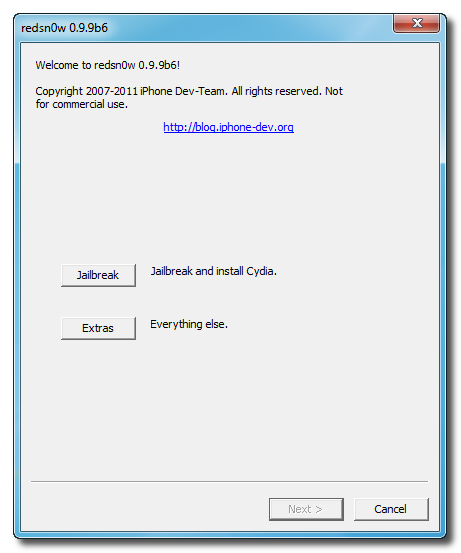
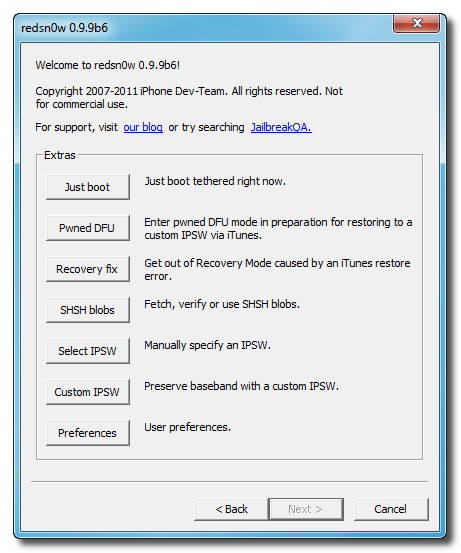
From the main RedSn0w menu click the Extras button.

Step Two
Select Just boot from the Extras menu to just boot tethered.


*As usual a big thanks to the iPhone Dev-Team and Geohot for their hard work and contribution to the iPhone community.

How to Jailbreak Your iPod Touch 4G Using RedSn0w (Mac) [5.0]


These are instructions on how to jailbreak your iPod Touch 4G on the iOS 5.0 firmware using RedSn0w for Mac.

This jailbreak is tethered which means you will need to connect your device to the computer each time you reboot. Finally, it may be prudent to save your SHSH Blobs by following this tutorial before continuing.

Step One
Create a folder on your desktop called Pwnage

Download RedSn0w 0.9.9b5 from here and place it in the Pwnage folder. Likewise, download the 5.0 firmware from here and place it in the Pwnage folder. (Note: you do not need to download the 5.0 firmware if you are already on iOS 5.0)

Extract the RedSn0w zip file by double clicking it.


Step Two: (Skip this step if you're on iOS 5 already)
Connect your iPod to the computer and launch iTunes.


Select your iPod from the list of devices on the left. Now hold down Option and click the Restore button. Restore is preferred as it won't create any wasted space on your iPod.


Navigate to the Pwnage folder on your desktop and select the 5.0 firmware ipsw. Click the Choose button to continue.


iTunes will now update your iPod to the new firmware.

Step Three
Launch the redsn0w application from the redsn0w folder we extracted earlier.


Step Four
Once RedSn0w opens click the Jailbreak button


Step Five
Plug your iPod into the computer and make sure its OFF then click the Next button


Step Six
RedSn0w will now guide you through the steps to get into DFU mode.


Hold down both the Home button and the Power button for 10 seconds.


Release the Power button and continue holding the Home button until RedSn0w detects the device.


Step Seven
Your iPod will now reboot


Step Eight
RedSn0w will prepare the jailbreak data.


Step Nine
Select Cydia from the list of options and click Next.


Step Ten
Your iPod will now be rebooted again and RedSn0w will begin uploading the new RAM Disk and Kernel.


Step Eleven
Once this is complete you will be notified that RedSn0w is done. When your iPod finishes rebooting (5 minutes or so) it will be jailbroken with Cydia on the SpringBoard.


BOOT TETHERED
Once you have jailbroken you will need to rerun redsn0w to boot tethered.

Step One
From the main RedSn0w menu click the Extras button.


Step Two
Select Just boot from the Extras menu to just boot tethered.


*As usual a big thanks to the iPhone Dev-Team and Geohot for their hard work and contribution to the iPhone community.

 
Design by Free WordPress Themes | Bloggerized by Lasantha - Premium Blogger Themes | Lady Gaga, Salman Khan